
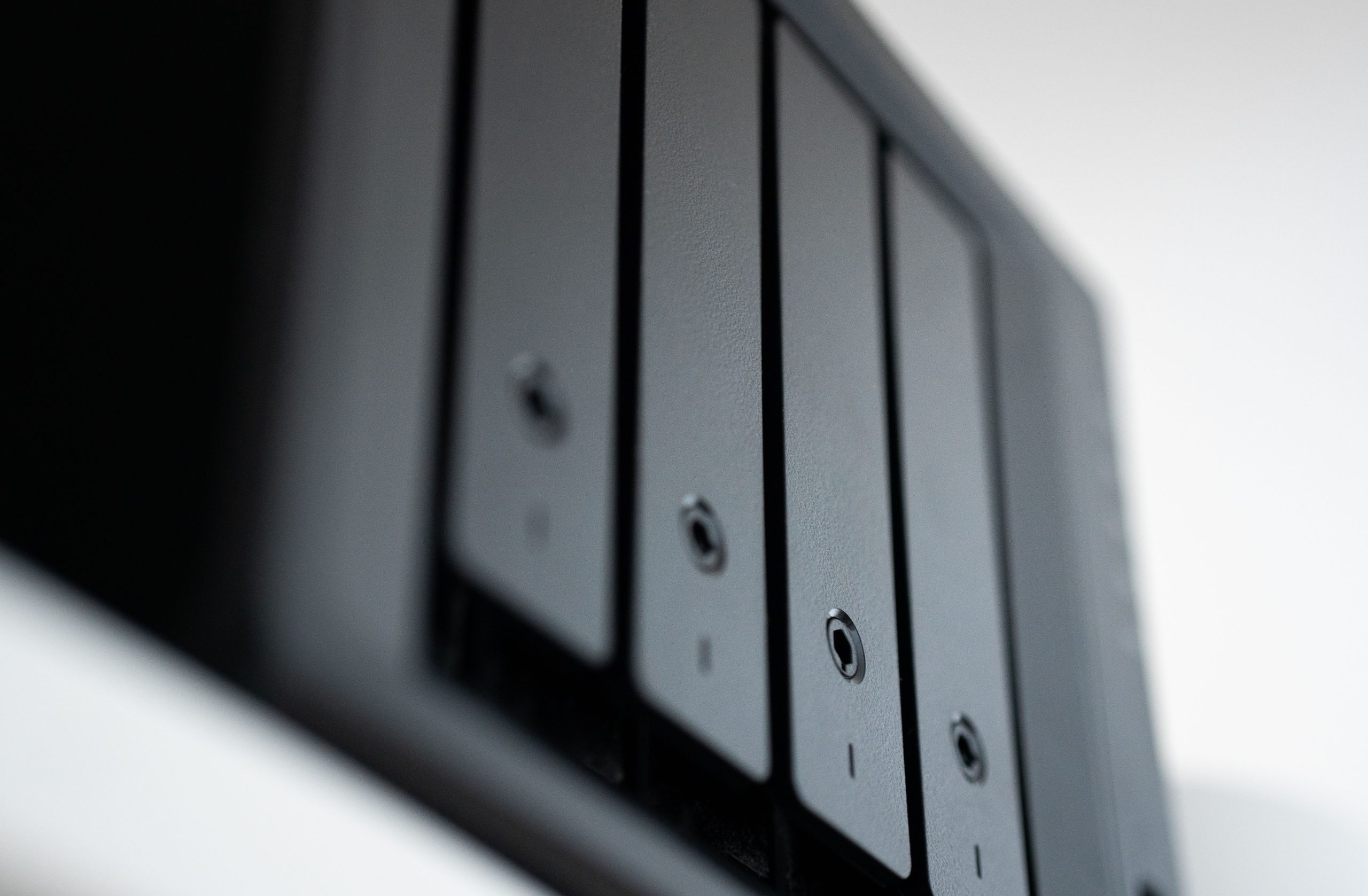
A NAS is on everyone’s lips right now — especially among people who say: I still have some old PC hardware lying around. You can of course hang it on the wall and look at it nicely. Or you do something useful with it and build yourself a NAS.
What is a NAS anyway?
NAS stands for Network Attached Storage. In plain terms: network-attached storage. That means nothing other than that I build myself a small computer from my old hardware, put in my old hard drives that I still have, and then use it, for example, as a data grave or as a backup solution for my current system. And how do I connect it to my computer? As the name already suggests, over the network. Everyone probably has a Fritzbox or something standing around. Your computer connects there and then somewhere also the box that we are assembling.
Why a NAS at all?
You can do far more with such a device than just use it as a data grave. You can run various apps on it to manage your media libraries, so any video and audio stuff, to then stream them on the TV or on the phone. You can access the thing from outside. If I am in the Far East, for example, and make some recordings or other things there, then I can already back that up to home over a hotel WiFi. That has the advantage: if the laptop gets stolen, a hard drive breaks, disappears, falls in the water or some other technical device goes, then you at least already have the data backed up at home. That is how I do it regularly when I am on the road.
Your own cloud
In the end you also have your own cloud with it, your own cloud storage. Your data is safely at your home and not on some American server, where everyone then happily reads along. Some people have a lot of concerns about that. And you save yourself the 2 TB that usually costs around €10, whether Google Drive, OneDrive or Apple iCloud.
From when do you need that as a normal user?
When at some point you no longer feel like having spinning hard drives in your system, because when they all resonate in parallel they make quite some noise. And if you want to back up data, that makes sense too. Actually that concerns almost everyone, because everyone probably has ten-year-old photos somewhere, twenty-year-old digital photos, which hopefully are not lying on some USB stick in a drawer, but are stored somewhere on the computer. But also only there, on some SSD or HDD. And if that dies, then the pictures are irrevocably deleted. It is not like it used to be, where you still had the negative in the drawer and could have it developed again. The photos are simply gone then. You can of course back them up via a cloud, but that usually costs money monthly, depending on the amount.
Buy ready-made or build yourself?
I was looking for a new case, because I want to build myself a new DIY NAS. This case, the Jonsbo N5, has a special feature: it has twelve bays for three-and-a-half-inch drives. Not everyone needs that, of course, but as a content creator I need a lot of storage space. You can of course also do all of this with a case where four hard drives go in, or two, or six, or eight.
The huge advantage of such a large case: a completely normal ATX mainboard fits in, so the one that everyone probably has already retired from their old PC, and a completely normal ATX power supply fits in too. So you do not have to buy some Mini-ITX mainboard and also a Mini-SFX power supply, because then it quickly becomes unattractive in price. Because then you can just as well buy a ready-made solution, from UGREEN or Synology or QNAP or Asustor. There is enough on the market that offers such a small box where everything is already in it, a small processor and so on, four drive bays. Those start at around €400, 400 to 600.
Otherwise you can of course also simply take any other old PC case. My current NAS is also in an old PC case, I have ten hard drives in it, eleven I could fit in. There are still those old five-and-a-quarter-inch drive bays in it, and there you can buy such an insert, into which five drives then go. But such a thing already costs €65. Then you can just as well buy such a case and have everything in one.
What hardware does a DIY NAS need?
As hardware I picked a Z90 mainboard. In itself that is absolutely overpowered for such a NAS system. But at the time it was relatively cheap: I actually bought it new for €130, I think, three years ago. I did not only buy it because it is a Master mainboard, so the Gigabyte Master series, the upper class from Gigabyte, but because it has a 10G LAN chip. At the time, a network card with the same chip cost the same — and here I get a whole mainboard for free on top. For many, 10G is irrelevant anyway, they do not need 10G, Gigabit or two-and-a-half Gigabit is enough for them. But I cut videos directly on the device, that is why 10G LAN. Nowadays there are more modern chips, a 10G network card there costs €50.
As processor an Intel of the eleventh generation is used, a 11500T. It has a low power consumption, but of course it does not clock as high for that and therefore does not have that much performance either. When it is doing nothing, it draws nothing to speak of. I took a power supply with 850 watts, which is actually overpowered too, because no fat graphics card goes in there. It is one of the oldest power supplies I have, and I do not need 12-volt high power here. For the CPU cooler a cheap one from China for €5.17 does the job, that is completely enough for this processor, because it has 35 watts TDP. For the RAM I took 64 GB, which in itself is exaggerated, but to show what is all possible, you can take that. That is simple Kingston DDR4 RAM with 2666 MHz. We will not load an XMP profile anyway, because if one thing matters with a NAS, it is that it runs stably and does not set any benchmark records.
On top of that come two cache SSDs with 500 GB each. A cache SSD is a luxury again with things like 10-gigabit LAN. And of course the hard drives. I have a lot of old things, from 5 TB to 80 GB. In my current NAS an Intel of the fourth generation runs, a 4770K on a Z97 mainboard, that is over twelve years old. It works, but at some point it needs to be updated, hence the rebuild.
Connecting more hard drives: controller cards
To such a mainboard you can usually only connect six hard drives, nowadays often only four, because then there are more M.2 slots. For that there are controller cards for different numbers of ports. They do not cost that much either: such a six-port card for €50, 60 you simply plug into a PCI slot, and then you can connect twelve drives to it too. I spent about €110, with the cables.
When you install such an expansion card, you should best install it in the slot that is attached to the CPU, so the upper one. The SATA port on the CPU is the upper one, and I would then hang the cache SSDs on the chipset down below. That is how I am simply trying out whether that is sensible or nonsense.
The pitfall with the M.2 and SATA ports
That was the point where I tripped myself up, because I had only skimmed the manual: if you put an M.2 NVMe in the lower slot, SATA ports 4 and 5 are switched off, because they share the connection. With six drives suddenly only four were shown. With this board it works such that you have to screw the M.2 into the upper slot, then the SATA ports remain available. A typical beginner’s mistake that I made here: not checking that beforehand. By the way, with this board SATA 1 does not start where you expect it to — the ports count differently than the labeling suggests.
What does operation cost?
For power consumption you can calculate per drive: when it runs, it is somewhere between 7 and 10 watts, that depends on the drive. Mainboard and processor draw 40 to 50. On top of that comes the 10G LAN chip, I do not know exactly how much that eats. For the power-saving enthusiast this is nothing. There are of course more power-saving things too. But the question is always how long you have to run a device until you have a higher purchase price back in. That is all application-specific — it depends on what you do with it afterwards.
When a ready-made NAS makes sense in a business
With companies we see that the classic dedicated file server is still in demand: simply hardware that is used to provide network shares for a handful up to a few dozen users. Especially for applications with large amounts of data like video editing, photo editing, CAD or design data, a network share offers advantages over a classic cloud solution in many cases. A NAS with two 10-gigabit ports is very well suited for that: enough bandwidth is available there so that several users can retrieve files at high speed at the same time. A single 10-gigabit port would already saturate the speed of most HDD arrays, but the second port also simply offers redundancy. Such a device provides a decent file server for about 10 to 20 users.
A second use case is virtualization. For the host for several virtual machines and numerous Docker apps you would need a powerful CPU, that is nothing for a weak device. But as storage for active VM disks of an external virtualization server such a NAS can certainly serve, especially because of the U.2 SSD support. With that you can very easily extend the storage space of Proxmox or ESXi or VMware servers via NFS or iSCSI.
And the third use case is the backup server. With a maximum capacity of 144 TB such a NAS offers enough storage space even for a large amount of backups. You can run two different storage pools on it: one based on very fast SSDs for backups that might need to be available for restore quickly, and a second based on HDDs for the longer-lying backups. ECC RAM is an advantage here, because it protects the data in the moment it is written and checked. File systems like ZFS or BTRFS do secure your data on the disk, but not on the way there in the RAM. It is exactly this gap that ECC closes.
The catch with the UGREEN DXP4800 GT
What really bothers me: the NAS technically supports ECC RAM, but is shipped from the factory with only completely normal DDR4 RAM. If you want to use the advantages of ECC, you have to upgrade it yourself afterwards. And in the current time, buying RAM is really not a cheap undertaking. If you want to upgrade 32 GB of ECC RAM, which would be a typical configuration for the use cases sketched here, you currently have to reckon with around €400 extra. That is more than half of the actual purchase price of the NAS. You should definitely bear that in mind if you really want to exhaust all the features of this hardware.
The CPU performance I personally do not see as a big dealbreaker. For the proposed use cases simply no great computing power is needed. Ugreen markets the NAS mainly for private users, as a NAS for the living room. But if you look at the feature set, with ECC RAM, U.2 SSDs and dual 10-gigabit, such a device does not belong in the living room in my view, but offers a very good price-performance ratio in the business environment. Interesting is that the model without the GT designation moves in the identical price range, but delivers fewer enterprise features.
Which operating system for the NAS?
On the software side the UGREEN NAS is shipped with UG OS Pro, which covers all basic requirements of a NAS and also makes the hosting of open-source apps very easy thanks to Docker support. As a disadvantage I see in the enterprise environment that this software is simply not yet as mature as with other manufacturers and some typical enterprise functions are missing. On the positive side, UGREEN lets you choose completely freely when it comes to hard drives compared to other NAS manufacturers, which is no longer a matter of course these days. The operating system is constantly supplied with functions and updates, so it is quite possible that currently missing functions will be added in the future.
For my DIY build I decided on Zima OS. That is free software. How simple the setup is, I will show then in the next part.